MS Office – Complete Notes for IBPS, SSC, RRB & Govt Exams
Microsoft Office is one of the most directly practical and exam-relevant chapters in Computer Awareness for IBPS, SSC CGL, RRB NTPC, LIC AAO, and all government job exams. This post covers everything — MS Word (components, features, shortcuts), MS Excel (functions, formulas, charts, shortcuts), MS PowerPoint (views, features, shortcuts), MS Access (components, data types, keys), MS Outlook, and Google Workspace — with memory tricks, one-liners, and 10 exam-focused FAQs.
Jump to section
- Introduction: Why MS Office is a Direct Scoring Chapter
- Overview of Microsoft Office / Microsoft 365
- MS Word - Word Processing Application
- MS Excel - Spreadsheet Application
- MS PowerPoint - Presentation Application
- MS Access - Desktop Database Application
- MS Outlook - Email Client
- Google Workspace (formerly G Suite)
- Collaboration Tools
- Microsoft Copilot in Office (AI Integration)
- Memory Tricks
- One-Liner Recap (Quick Revision)
Introduction: Why MS Office is a Direct Scoring Chapter
MS Office questions in government job exams are among the most directly scorable — they test specific, factual knowledge about features, shortcuts, and functions. Unlike conceptual topics that require understanding, MS Office questions reward memorisation of precise facts.
In IBPS, SSC, and RRB exams, MS Office questions appear as:
- "The default file extension of MS Word is ___?" → .docx
- "Which function in Excel returns the maximum value?" → =MAX()
- "Ctrl + F12 in MS Word performs ___?" → Save As
- "Which view in PowerPoint shows all slides as thumbnails?" → Slide Sorter View
- "What is the default number of sheets in a new Excel workbook?" → 3 (older versions); 1 (newer versions)
- "Mail Merge is available in which tab of MS Word?" → Mailings
This chapter is also directly relevant to the job — bank employees use MS Word for correspondence, Excel for data management, PowerPoint for presentations, and Access for small databases daily. Knowing these tools well makes you immediately productive from day one.
This post gives you every testable fact about all five core Office applications — systematically organised for maximum exam success.
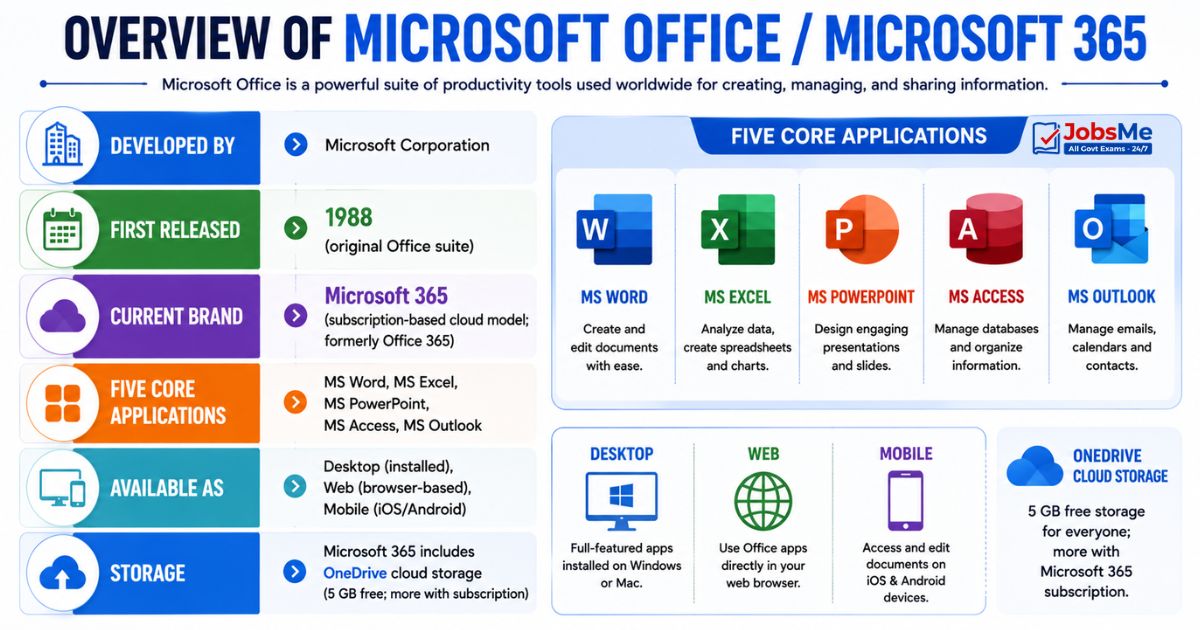
Overview of Microsoft Office / Microsoft 365
| Feature | Details |
|---|---|
| Developed by | Microsoft Corporation |
| First released | 1988 (original Office suite) |
| Current brand | Microsoft 365 (subscription-based cloud model; formerly Office 365) |
| Five Core Applications | MS Word, MS Excel, MS PowerPoint, MS Access, MS Outlook |
| Available as | Desktop (installed), Web (browser-based), Mobile (iOS/Android) |
| Storage | Microsoft 365 includes OneDrive cloud storage (5 GB free; more with subscription) |
Microsoft Copilot in Office (2023-2024): Microsoft has integrated AI (GPT-4 based Copilot) into all Office applications:
- Word Copilot — Drafts documents, summarises long documents, rewrites content
- Excel Copilot — Analyses data, generates formulas automatically, creates charts from natural language prompts
- PowerPoint Copilot — Creates full presentations from a text prompt
- Outlook Copilot — Drafts email replies, summarises email threads
MS Word - Word Processing Application
MS Word is Microsoft's word processing application — used to create, edit, format, store, and print text documents.
Default File: Document1 | Default Extension: .docx (since Office 2007) | Older: .doc
Key Components of MS Word Interface
| Component | Description |
|---|---|
| Title Bar | Topmost bar showing the application name + document name; has Minimize, Restore/Maximize, Close buttons |
| Ribbon | The main panel of commands organised into tabs; replaced traditional menu bars from Office 2007 |
| Tabs on Ribbon | Home, Insert, Page Layout, References, Mailings, Review, View |
| Quick Access Toolbar | Customisable toolbar above the Ribbon with frequently used commands (Save, Undo, Redo) |
| Ruler | Horizontal ruler (shows width and margins); Vertical ruler (shows height and margins) |
| Document Area | The main white area where text is entered and formatted |
| Status Bar | Bottom bar showing page number, word count, language, zoom level |
| Cursor/Insertion Point | The blinking vertical line showing where text will be inserted when you type |
| Scroll Bar | Vertical and horizontal bars for navigating the document |
Key Features of MS Word
| Feature | Details |
|---|---|
| Text Editing | Cut (Ctrl+X), Copy (Ctrl+C), Paste (Ctrl+V), Undo (Ctrl+Z), Redo (Ctrl+Y) |
| Text Formatting | Bold (Ctrl+B), Italic (Ctrl+I), Underline (Ctrl+U); Font, Size, Colour |
| Paragraph Formatting | Alignment: Left (Ctrl+L), Centre (Ctrl+E), Right (Ctrl+R), Justify (Ctrl+J) |
| Indentation | Positive (moves text right), Negative (moves left), Hanging (first line left, rest indented) |
| Page Orientation | Portrait (vertical — default); Landscape (horizontal) |
| Find and Replace | Ctrl+F (Find); Ctrl+H (Replace) — locate and replace text throughout document |
| Spell Check | F7 — checks spelling and grammar errors; also available in Review tab |
| Thesaurus | Review tab → Proofing → Thesaurus — suggests synonyms |
| Bullets and Numbering | Bullets = unordered list; Numbering = ordered/numbered list |
| OLE | Object Linking and Embedding — insert objects from other applications (Excel chart in Word) |
| Mail Merge | Mailings tab — merge a template document with a data source (address list) to create personalised letters/envelopes |
| Autocorrect | Automatically corrects predefined typing/spelling/capitalisation errors as you type |
| Word Count | Review tab → Word Count; or view count in Status Bar |
| Default Alignment | Left alignment (Ctrl+L) is the default paragraph alignment in MS Word |
| Track Changes | Review tab — records all edits made to a document (useful for collaborative editing) |
| Table of Contents | References tab — automatically generates TOC from heading styles |
MS Word File Extensions
| Extension | Format | Notes |
|---|---|---|
| .docx | Word Document (XML-based) | Default since Office 2007 |
| .doc | Word Document (binary) | Legacy format (Office 97-2003) |
| .dotx | Word Template | Template file |
| Portable Document Format | Save As PDF directly from Word | |
| .rtf | Rich Text Format | Cross-platform compatibility |
| .txt | Plain Text | No formatting |
Important MS Word Shortcut Keys
| Shortcut | Action |
|---|---|
| Ctrl + N | New document |
| Ctrl + O | Open existing document |
| Ctrl + S | Save document |
| Ctrl + Shift + S or Shift + F12 | Save (alternative) |
| F12 | Save As (opens dialog to save with new name/location) |
| Ctrl + P | |
| Ctrl + A | Select All text in document |
| Ctrl + X | Cut selected text |
| Ctrl + C | Copy selected text |
| Ctrl + V | Paste |
| Ctrl + Z | Undo last action |
| Ctrl + Y | Redo (repeat last action) |
| Ctrl + F | Find |
| Ctrl + H | Find and Replace |
| F7 | Spell Check |
| Ctrl + B | Bold |
| Ctrl + I | Italic |
| Ctrl + U | Underline |
| Ctrl + L | Align Left (default) |
| Ctrl + E | Centre alignment |
| Ctrl + R | Align Right |
| Ctrl + J | Justify |
| Ctrl + End | Move cursor to end of document |
| Ctrl + Home | Move cursor to beginning of document |
| Ctrl + Enter | Insert page break |
| F1 | Open Help |
| Alt + F4 | Close application |
MS Excel - Spreadsheet Application
MS Excel is Microsoft's spreadsheet application — used for calculations, data analysis, creating charts, and database management.
Default File: Book1 | Default Extension: .xlsx (since Office 2007) | Older: .xls
Key Excel Terminology
| Term | Definition |
|---|---|
| Cell | The basic unit of an Excel worksheet — the intersection of a row and a column; can hold numbers, text, formulas, or dates |
| Worksheet | A single spreadsheet page/tab within a workbook — also called a Sheet |
| Workbook | The Excel file itself — contains one or more worksheets; default = 3 sheets (older versions) / 1 sheet (newer) |
| Rows | Horizontal lines numbered 1, 2, 3... (up to 1,048,576 in Excel 2007+) |
| Columns | Vertical lines lettered A, B, C... Z, AA, AB... (up to column XFD = 16,384 columns) |
| Active Cell | The currently selected cell; indicated by a bold border and highlighted cell address in the Name Box |
| Cell Address | The unique identifier of a cell — column letter + row number (e.g., A1, B5, Z100) |
| Cell Range | A group of adjacent cells (e.g., A1:D10 = all cells from A1 to D10) |
| Formula | A calculation expression that always begins with = (equals sign) — e.g., =A1+B1 |
| Name Box | Located top-left; shows the address of the active cell; can be used to navigate to any cell |
| Formula Bar | Located below the Ribbon; shows the contents (formula or value) of the active cell; where formulas are entered/edited |
| $ (Dollar Sign) | Locks a cell reference to make it absolute — $A$1 always refers to A1 regardless of where the formula is copied |
| Relative Reference | Default cell reference (A1) — adjusts automatically when formula is copied to another cell |
| Absolute Reference | Fixed cell reference ($A$1) — stays constant when formula is copied |
| Chart Wizard | Tool used to create charts (graphs) in Excel |
| Embedded Chart | A chart placed directly on the same worksheet as the data |
Common Excel Functions
| Function | Syntax | Description |
|---|---|---|
| SUM | =SUM(A1:A10) | Adds all values in the specified range |
| AVERAGE | =AVERAGE(A1:A10) | Calculates the arithmetic mean of values |
| COUNT | =COUNT(A1:A10) | Counts the number of cells containing numbers |
| COUNTA | =COUNTA(A1:A10) | Counts non-empty cells (any data type) |
| MAX | =MAX(A1:A10) | Returns the largest value in the range |
| MIN | =MIN(A1:A10) | Returns the smallest value in the range |
| TODAY | =TODAY() | Returns the current date (updates daily) |
| NOW | =NOW() | Returns current date AND time |
| LEN | =LEN(A1) | Returns the number of characters in a cell |
| IF | =IF(condition, value_if_true, value_if_false) | Conditional function — returns different values based on a condition |
| VLOOKUP | =VLOOKUP(lookup_value, table_array, col_index, [range_lookup]) | Looks up a value in the first column of a table and returns a value in the same row from a specified column |
| HLOOKUP | =HLOOKUP(lookup_value, table_array, row_index, [range_lookup]) | Like VLOOKUP but searches horizontally |
| CONCATENATE | =CONCATENATE(A1," ",B1) | Joins two or more text strings into one |
| LEFT | =LEFT(A1, n) | Extracts n characters from the left of a text string |
| RIGHT | =RIGHT(A1, n) | Extracts n characters from the right |
| MID | =MID(A1, start, n) | Extracts n characters starting from position 'start' |
| ROUND | =ROUND(A1, 2) | Rounds a number to specified decimal places |
| SUMIF | =SUMIF(range, criteria, sum_range) | Sums values that meet a specific condition |
| COUNTIF | =COUNTIF(range, criteria) | Counts cells that meet a specific condition |
Excel Chart Types
| Chart Type | Best Used For |
|---|---|
| Column Chart | Comparing values across categories over time (vertical bars) |
| Bar Chart | Same as column but horizontal; good for long category names |
| Line Chart | Showing trends over time at equal intervals |
| Pie Chart | Showing proportional size of parts to a whole; works only with one data series |
| Area Chart | Showing magnitude of change over time; like filled line chart |
| Scatter (XY) Chart | Showing relationship/correlation between two numeric variables |
| Doughnut Chart | Like pie chart but shows multiple data series; has a hole in the centre |
| Stacked Bar/Column | Showing relationship of individual items to the total |
| Bubble Chart | Like scatter chart but with a third variable shown as bubble size |
Important MS Excel Shortcut Keys
| Shortcut | Action |
|---|---|
| F2 | Edit the selected/active cell |
| F5 | Go to a specific cell (opens Go To dialog) |
| F7 | Spell check |
| F11 | Create a chart from selected data in a new chart sheet |
| Ctrl + A | Select all cells in worksheet |
| Ctrl + Z | Undo |
| Ctrl + Y | Redo |
| Ctrl + Space | Select the entire column of the active cell |
| Shift + Space | Select the entire row of the active cell |
| Ctrl + 9 | Hide the selected row(s) |
| Ctrl + 0 | Hide the selected column(s) |
| Shift + Home | Select from active cell to the first cell in the row |
| Ctrl + Home | Go to cell A1 (beginning of worksheet) |
| Ctrl + End | Go to the last used cell in the worksheet |
| Alt + = | AutoSum — inserts SUM formula for selected range |
| Ctrl + ; | Insert current date into active cell |
| Ctrl + Shift + ; | Insert current time into active cell |
| Alt + Shift + F1 | Insert a new worksheet |
| Shift + F11 | Insert a new worksheet (alternative) |
| Ctrl + F9 | Minimise the workbook window |
| Ctrl + F10 | Maximise/restore the workbook window |
| Ctrl + Page Down | Move to the next worksheet tab |
| Ctrl + Page Up | Move to the previous worksheet tab |
MS PowerPoint - Presentation Application
MS PowerPoint is Microsoft's presentation application — used to create visual slide-based presentations.
Default File: Presentation1 | Default Extension: .pptx (since Office 2007) | Older: .ppt Maximum Zoom Level: 400%
Key PowerPoint Views
| View | Purpose |
|---|---|
| Normal View | The main editing view — shows slide, notes panel, and slide panel; default view for creating presentations |
| Slide Sorter View | Shows all slides as small thumbnails; used to rearrange, copy, delete slides; gives overall view of the presentation |
| Notes Page View | Shows the slide and a large notes area below — add speaker notes that are not visible to the audience |
| Slide Show View | Full-screen presentation mode — how the audience sees it; press Esc to exit |
| Reading View | Plays the presentation in a window (not full-screen); good for self-review |
| Outline View | Shows just the text content of all slides in outline form; good for planning structure |
| Master View | Controls the background, fonts, colours, and layout for ALL slides simultaneously — changes here apply to the entire presentation |
Key PowerPoint Features
| Feature | Details |
|---|---|
| Slide | Single page of a presentation |
| Slide Layout | Predefined arrangement of placeholders on a slide |
| Transition | Animation effect between slides (Fade, Wipe, Fly) |
| Animation | Motion effect applied to individual elements within a slide |
| Slide Master | Template that controls formatting for all slides; changes apply globally |
| Presenter View | Shows current slide, next slide preview, and speaker notes — visible only to presenter |
| Hyperlink | Link added to text or image navigating to another slide, website, or file |
| SmartArt | Visual representations of information (process diagrams, hierarchies, cycles) |
Important MS PowerPoint Shortcut Keys
| Shortcut | Action |
|---|---|
| F5 | Start Slide Show from the beginning |
| Shift + F5 | Start Slide Show from the current slide |
| Esc | End slide show; exit full-screen |
| Ctrl + M | Insert a new slide |
| Ctrl + D | Duplicate selected slide |
| Ctrl + N | New presentation |
| Ctrl + O | Open existing presentation |
| Ctrl + S | Save |
| Ctrl + Home | Go to the first slide |
| Ctrl + End | Go to the last slide |
| Ctrl + A | Select all objects on slide |
| Shift + Click | Select multiple slides/objects |
| F1 | Help |
| B (during slideshow) | Black out screen (press again to resume) |
| W (during slideshow) | White out screen (press again to resume) |
| Ctrl + Z | Undo |
| Ctrl + Y | Redo |
MS Access - Desktop Database Application
MS Access is Microsoft's desktop RDBMS (Relational Database Management System) — used to create, manage, and query relational databases.
Default Extension: .accdb (Access 2007+) | Older: .mdb
Four Main Components of MS Access
| Component | Description |
|---|---|
| 1. Tables | The fundamental building block — stores data in rows (records) and columns (fields); like worksheets in Excel but designed for relational data |
| 2. Queries | Retrieve, filter, and manipulate data from tables. Types: Select (retrieves data), Parameter (asks user for input), Cross-tab (summarises like a pivot table), Action (INSERT/UPDATE/DELETE), SQL |
| 3. Forms | User-friendly graphical interfaces for entering and viewing data — makes interacting with tables easier for non-technical users |
| 4. Reports | Formatted, printable output of queried/table data — designed for printing or distribution |
Data Types in MS Access
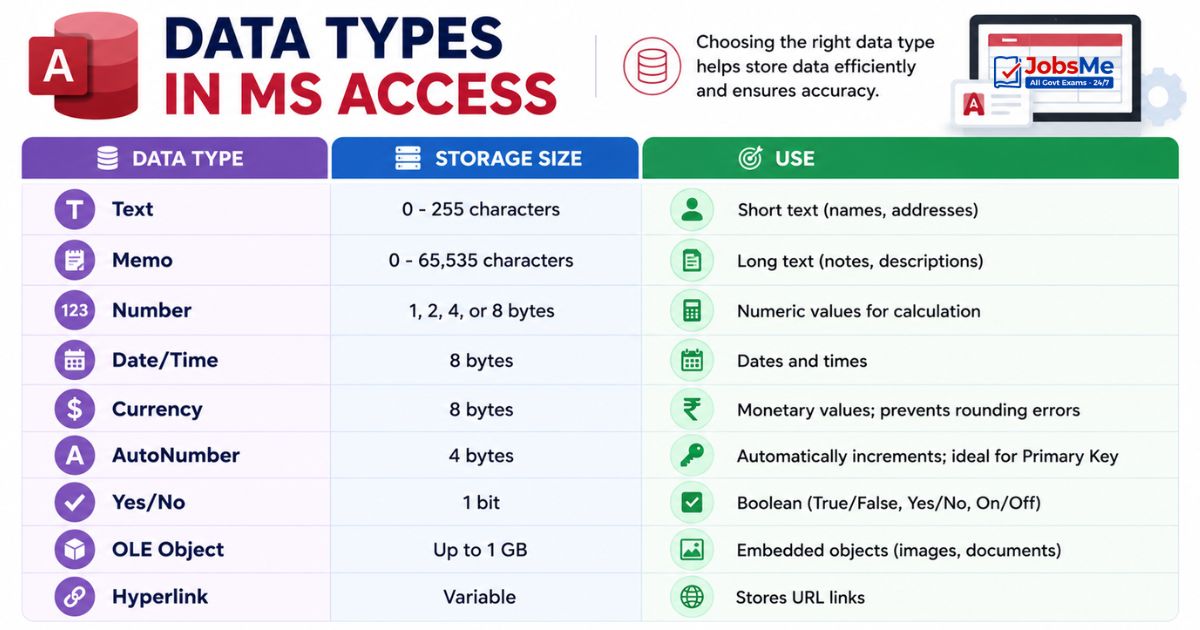
| Data Type | Storage Size | Use |
|---|---|---|
| Text | 0 - 255 characters | Short text (names, addresses) |
| Memo | 0 - 65,535 characters | Long text (notes, descriptions) |
| Number | 1, 2, 4, or 8 bytes | Numeric values for calculation |
| Date/Time | 8 bytes | Dates and times |
| Currency | 8 bytes | Monetary values; prevents rounding errors |
| AutoNumber | 4 bytes | Automatically increments; ideal for Primary Key |
| Yes/No | 1 bit | Boolean (True/False, Yes/No, On/Off) |
| OLE Object | Up to 1 GB | Embedded objects (images, documents) |
| Hyperlink | Variable | Stores URL links |
Key MS Access Facts
| Feature | Details |
|---|---|
| Default field size | 255 characters (for Text/Short Text data type) |
| Primary Key rules | Cannot contain NULL values; must be unique; identifies each record |
| Views | Datasheet View — enter and view data (like a spreadsheet); Design View — create and modify table structure (field names, data types, properties) |
| Relationships | Tables are linked through Primary Key-Foreign Key relationships, enforcing referential integrity |
Important MS Access Shortcut Keys
| Shortcut | Action |
|---|---|
| Ctrl + N | Create a new database |
| Ctrl + O | Open existing database |
| Ctrl + S | Save |
| Ctrl + Plus (+) | Add a new record |
| Ctrl + Minus (−) | Delete current record |
| Ctrl + ; | Insert today's date |
| F7 | Spell check |
| F2 | Switch between Edit mode and Navigation mode; also used to rename |
| Ctrl + Z | Undo |
| Escape | Undo changes to current field |
| Tab | Move to next field |
| F5 | Move to record number box (to navigate to specific record) |
MS Outlook - Email Client
MS Outlook is Microsoft's email client and personal information manager — used for email, calendar, contacts, and tasks.
Key Outlook Folders:
| Folder | Purpose |
|---|---|
| Inbox | Received emails arrive here |
| Outbox | Emails queued waiting to be sent (temporary) |
| Sent Items | Copies of all successfully sent emails |
| Drafts | Emails started but not yet sent |
| Deleted Items | Deleted emails (like Recycle Bin) |
| Junk Email / Spam | Automatically filtered unwanted emails |
Key Outlook Features:
- Calendar — schedule meetings, appointments, set reminders
- Contacts — address book for storing contact information
- Tasks — to-do list with deadlines
- Rules — automatically sort, forward, or delete emails based on criteria
- Out of Office Reply — automatic reply when you're away
Google Workspace (formerly G Suite)
Google Workspace is Google's cloud-based productivity suite — a direct competitor to Microsoft 365.
| Google App | Microsoft Equivalent | Notes |
|---|---|---|
| Google Docs | MS Word | Word processor; real-time collaboration; auto-saves to Google Drive |
| Google Sheets | MS Excel | Spreadsheet; supports many Excel-like formulas |
| Google Slides | MS PowerPoint | Presentation tool; easy sharing |
| Google Forms | — | Online survey and quiz tool |
| Google Drive | OneDrive | Cloud storage — 15 GB free |
| Gmail | MS Outlook | Email client; 15 GB storage (shared with Drive) |
| Google Meet | MS Teams | Video conferencing |
| Google Classroom | — | Educational platform |
| Google Calendar | Outlook Calendar | Scheduling and calendar |
Gemini AI integration into Google Workspace was introduced in 2024, bringing AI-powered writing assistance, summarisation, and data analysis to all Google apps.
Collaboration Tools
Modern workplace collaboration tools have become essential knowledge for government job exams, especially post-pandemic:
| Tool | Company | Primary Use |
|---|---|---|
| Microsoft Teams | Microsoft | Video calls, chat, file sharing, Office integration |
| Zoom | Zoom Video Communications | Video conferencing; webinars |
| Slack | Salesforce | Team messaging; channel-based communication |
| Google Meet | Video conferencing; integrates with Google Calendar | |
| Notion | Notion Labs | Notes, wikis, project management, databases |
| Trello | Atlassian | Visual project management using Kanban boards |
| Jira | Atlassian | Project and issue tracking; popular in software development |
| Asana | Asana Inc. | Task and project management |
Microsoft Copilot in Office (AI Integration)
| Application | Copilot Feature |
|---|---|
| Word Copilot | Drafts full documents from a prompt; summarises long documents; rewrites sections in different tones |
| Excel Copilot | Analyses data; automatically generates complex formulas; creates charts from natural language; identifies trends |
| PowerPoint Copilot | Creates a complete presentation from a text description; adds speaker notes; reformats slides |
| Outlook Copilot | Drafts email replies; summarises long email threads; schedules meetings from email context |
| Teams Copilot | Summarises meeting transcripts; identifies action items; answers questions about missed meetings |
Memory Tricks
🔑 MS Word File Extensions:
.docx = Word; .xlsx = Excel; .pptx = PowerPoint; .accdb = Access Trick: "DOCX, XLSX, PPTX, ACCDB" — all end in X (except Access which ends in DB = DataBase)
🔑 MS Word Key Shortcuts to Memorise:
F7 = Spell check | F12 = Save As | Ctrl+H = Replace | Ctrl+E = Centre "F7 for Fixing spelling; F12 to File with new name"
🔑 Excel Formula Must-Start:
Every Excel formula starts with = (equals sign) "Equals means Excel is working"
🔑 PowerPoint Views:
Normal = Note-taking view (default) Slide Sorter = See ALL slides together Slide Show = Audience sees this (F5) "Normal works; Sorter shows all; Show presents"
🔑 PowerPoint Shortcuts:
F5 = Start from beginning | Shift+F5 = Start from current slide "F5 = First slide; Shift+F5 = Selected slide"
🔑 MS Access Four Components:
Tables → Queries → Forms → Reports Mnemonic: "The Queen Forms Reports"
🔑 Google Drive Free Storage:
Google = 15 GB free (largest free tier) OneDrive/iCloud = 5 GB free Dropbox = 2 GB free
One-Liner Recap (Quick Revision)
- Microsoft Office (now Microsoft 365) was first released in 1988 and includes five core applications: MS Word, MS Excel, MS PowerPoint, MS Access, and MS Outlook.
- MS Word is a word processing application; the default file extension is .docx, and the default paragraph alignment is left alignment (Ctrl+L).
- In MS Word, F7 opens Spell Check, F12 opens Save As, Ctrl+H opens Find and Replace, and Ctrl+Enter inserts a page break.
- Mail Merge in MS Word is found in the Mailings tab and allows merging a template document with a data source to create personalised letters, envelopes, and labels.
- MS Excel is a spreadsheet application; the default extension is .xlsx; every formula must begin with an equals sign (=); rows are numbered and columns are lettered.
- In MS Excel, $A$1 is an absolute reference (locked) while A1 is a relative reference (adjusts when copied); the $ sign locks the row and/or column.
- =SUM() adds values, =AVERAGE() calculates mean, =MAX() returns the largest, =MIN() returns the smallest, =COUNT() counts numbers, and =IF() applies conditions in Excel.
- Alt+= in Excel inserts an AutoSum formula; Ctrl+; inserts today's date; Ctrl+Shift+; inserts current time; F11 creates a chart in a new sheet.
- MS PowerPoint is a presentation application; the default extension is .pptx; maximum zoom is 400%; F5 starts the slideshow from the beginning.
- The five PowerPoint views are Normal (editing), Slide Sorter (thumbnails), Notes Page (speaker notes), Slide Show (full-screen presentation), and Master View (global template).
- MS Access is a desktop RDBMS with four components: Tables (store data), Queries (retrieve data), Forms (data entry interface), and Reports (printable output); default extension is .accdb.
- In MS Access, the Text data type holds up to 255 characters, AutoNumber automatically increments (ideal for Primary Key), and Yes/No uses only 1 bit.
- Google Workspace (formerly G Suite) includes Google Docs (Word), Sheets (Excel), Slides (PowerPoint), Drive (15 GB free storage), Gmail, and Google Meet.
- Microsoft Copilot (GPT-4 based AI) is integrated into all Office apps — it drafts documents in Word, analyses data in Excel, creates presentations in PowerPoint, and summarises emails in Outlook.
- MS Outlook's key folders are Inbox (received), Outbox (queued to send), Sent Items (sent copies), Drafts (unsent), Deleted Items (trash), and Junk Email (spam).
Preparing for competitive exams requires consistent revision. Platforms like JobsMe simplify preparation through:
- Daily Current Affairs
- Weekly Current Affairs
- Monthly Current Affairs
- Static GK for Competitive Exams
- Latest Government Jobs Notifications
- Banking Awareness
Stay updated, revise regularly, and attempt quizzes for better accuracy in UPSC, SSC CGL, IBPS PO/Clerk, SBI, RBI Grade B, RRB NTPC, Defence, and State PSC exams.
Free quiz • No signup required
Put this topic into practice with Daily Current Affairs Quiz 10 June 2026 MCQs for UPSC, SSC, Banking, Railways, Defence & State PSC Exams. It is the quickest way to reinforce what you just learned.
Frequently Asked Questions
What are the five core applications in Microsoft Office and what is each used for?
What is the difference between .doc and .docx file formats in MS Word?
What is Mail Merge in MS Word and how is it used?
What is the difference between an absolute and relative cell reference in Excel?
What are the main views in MS PowerPoint and when is each used?
What is the difference between MS Access and MS Excel for storing data?
What are the four components of MS Access?
What is the difference between Google Workspace and Microsoft 365?
What important Excel functions should every exam candidate know?
What is Microsoft Copilot and how is it integrated into Office applications?

About the author